- Published on
Webpack build progress information
- Authors

- Name
- Marcelo Carmona
- @carmonamarcelo
When we use webpack to generate our bundles, it is often convenient in our development environment to show information about the size of each module, the bundles themselves, the time the process takes, and whether we are transpiling code through Babel or using PostCSS to preprocess our style sheets.
The current options for showing this information are provided through webpack plugins. I will show three simple alternatives for displaying this type of information.
webpack-dashboard
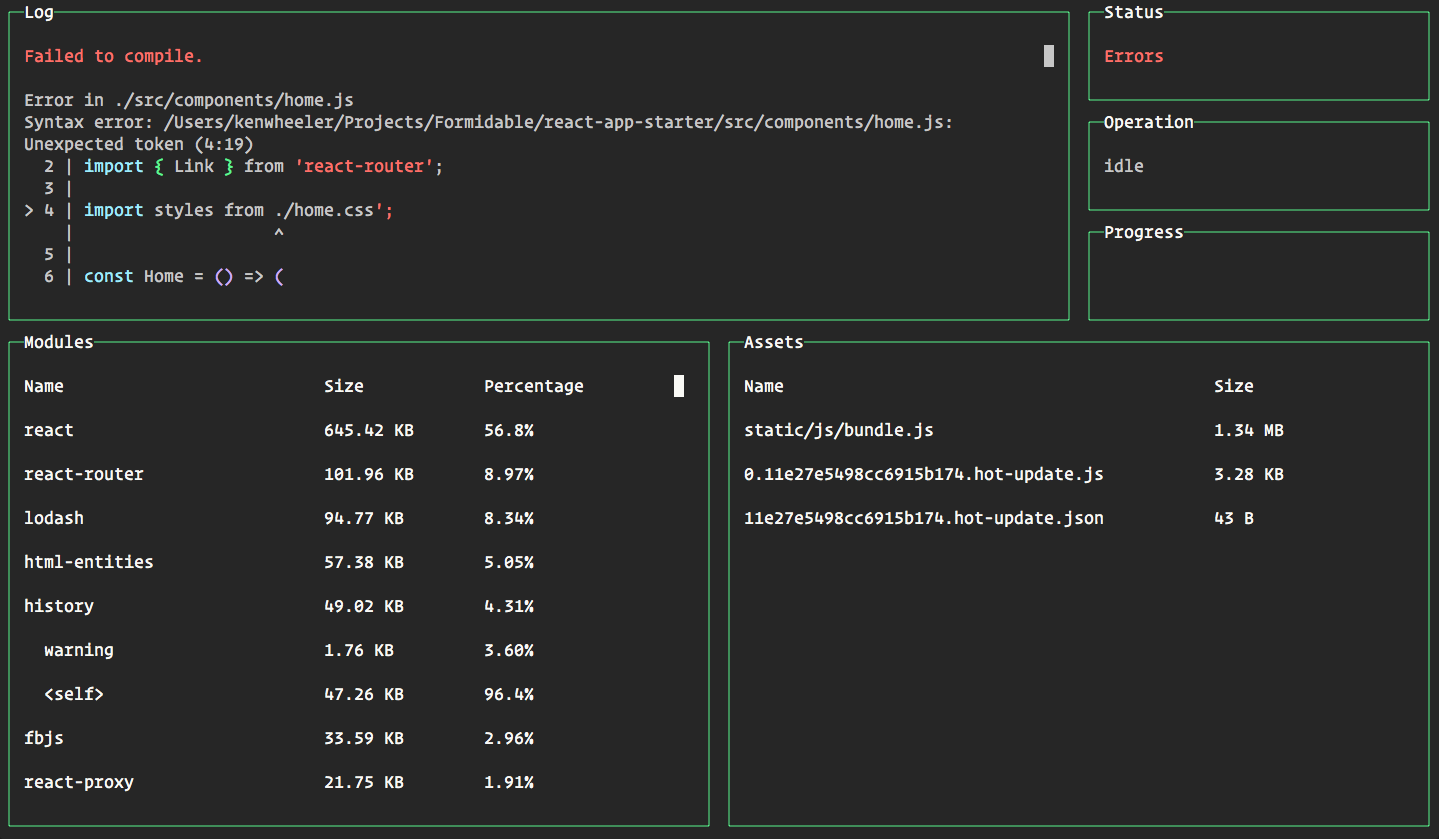
This dashboard was created by formidable.com, and it is a good option that shows information about:
- Log: the error log of the build process
- Status: status of the build process
- Operation: shows the specific operation that is performed in the build process
- Progress: live building progress
- Module: a list of your modules, their size, and their percentage with respect to the size of the bundle
- Assets: list of generated assets
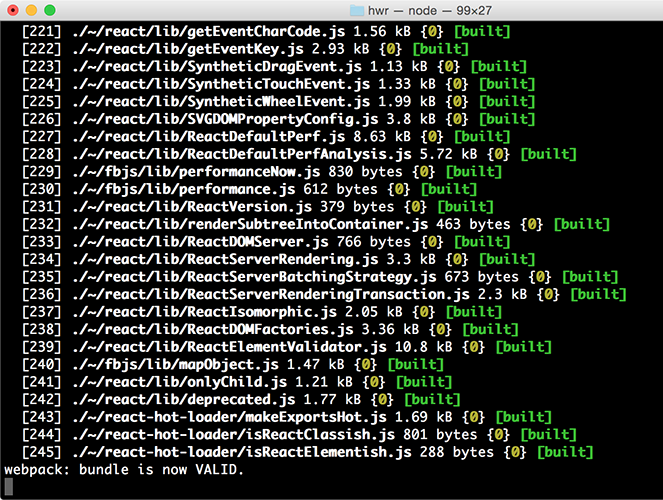
If you normally use webpack with webpack-dev-server or webpack-dev-middleware, you will be used to seeing something like this:
webpack-dashboard was created by Ken Wheeler. It looks like this :)
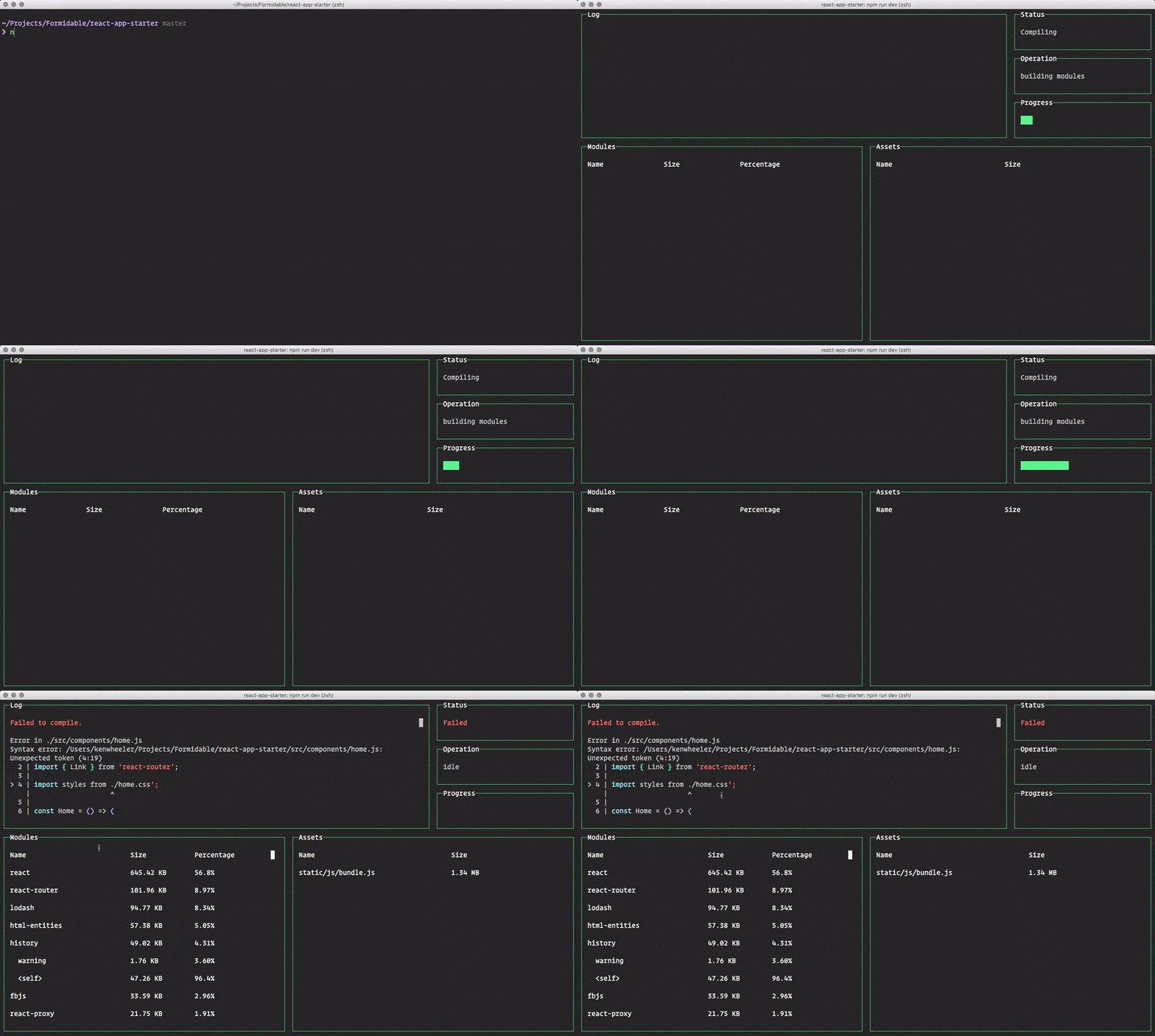
Here you can see it in action:
Installing it is quite simple:
npm install webpack-dashboard --save-devThen we add the plugin to our webpack configuration:
// Import the plugin:
var DashboardPlugin = require('webpack-dashboard/plugin')

// If you aren't using express, add it to your webpack configs plugins section:
plugins: [new DashboardPlugin()]

// If you are using an express based dev server, add it with compiler.apply
compiler.apply(new DashboardPlugin())
Now we have to call webpack-dashboard from our package.json.
If your dev server looks like this:
"scripts": {
    "dev": "node index.js"
}
We must change it to this:
"scripts": {
    "dev": "webpack-dashboard -- node index.js"
}
For more configuration information, you can see the project on GitHub.
As I said before, I think the proposal of having a dashboard to obtain relevant information about our projects is very good. Here I leave some tweets that were written at the time of its release.
Up on the blog: @ken_wheeler introduces Webpack Dashboard, a CLI dashboard for your Webpack-dev-server
https://t.co/1jD1Q8lWRn— Formidable (@FormidableLabs) August 15, 2016
Excited to announce the first turbo alpha version of webpack-dashboard is now released!
https://t.co/OnYvgwHmXC pic.twitter.com/tATG2TMoNj— Ken Wheeler (@ken_wheeler) August 14, 2016
Built me a webpack console dashboard, with progress, status, build logs and browser console. I'm tired. pic.twitter.com/uoOz81Nf3M
— Ken Wheeler (@ken_wheeler) August 13, 2016
Webpack Dashboard: 3k stars in 2 days. Huge demand for better UX in dev tools. Take note!
https://t.co/QLY6qrODZK pic.twitter.com/AgRWA9o8TM— Dan Abramov (@dan_abramov) August 16, 2016
webpack progressBar plugin
This is another option that is quite simple, but when you work on a large project and the build time increases, even showing a progress bar improves the developer experience a lot.

To install it we need to execute:
npm install progress-bar-webpack-plugin --save-devThen add it as a plugin in our webpack configuration file:
var ProgressBarPlugin = require('progress-bar-webpack-plugin');

...

plugins: [
  new ProgressBarPlugin()
]
You can see the project in github to see more configuration options.
webpack progress plugin
And finally, if you want to have something even simpler or more custom, we can use the ProgressPlugin provided by webpack.
It is basically inserted as a plugin in our webpack configuration file.
new webpack.ProgressPlugin(function handler(percentage, msg) {
  /* ... */
})
We can use this hook to show progress information, where the percentage is a value between 0 and 1 that indicates the completeness of the process.
For example, we can use it in the following way:
new webpack.ProgressPlugin((percentage, msg) => {
  process.stdout.clearLine()
  process.stdout.write(` \u00BB building bundles: ${(percentage * 100.0).toFixed(2)} % => ${msg}\r`)
})
In this case, I want to show the information in a single line, so I use \r.
And this example can look like this:
